
SSO
Set up Single Sign-On with OpenID Connect, and enforce it for your team
Introduction
Single Sign-On lets your team sign in to Dotfile with your company's existing identity provider — Google Workspace, Microsoft Entra ID, Okta, or any OIDC-compliant one — instead of a separate Dotfile password. Access is then granted and revoked where you already manage it.
How it works
When SSO is configured, Dotfile detects the user's email domain at login and offers a one-click redirect to their Identity Provider. After the user authenticates with their corporate credentials, they are automatically logged into Dotfile.
Configuration
-
Domain verification: Before enabling SSO, workspace admins must verify ownership of their email domain via a DNS TXT record. This prevents unauthorized domain claims.
-
SSO enforcement: Workspace admins can require SSO as the only authentication method, blocking password and social login for all workspace users.
Login flow
-
Automatic domain detection: When a user enters their email on the Dotfile login page, if their email domain has SSO configured on a workspace, the page displays a "Continue with [Provider]" button.
-
Identity Provider redirect: Clicking the SSO button redirects the user to their Identity Provider like Google Workspace, Microsoft Entra ID, Okta, or any OIDC-compliant provider. After authenticating, the user comes back to Dotfile. The email on the provider must match the Dotfile user's email, or the two accounts will not be linked.
-
Just-In-Time provisioning: New users authenticating via SSO for the first time are automatically created in Dotfile, using the email, first name and last name held by the identity provider. They will still need to be invited to your workspace.
Existing users are linked to their OIDC identity on their first SSO login. If their email address is not verified, they will be asked for verification first.
Setting up SSO
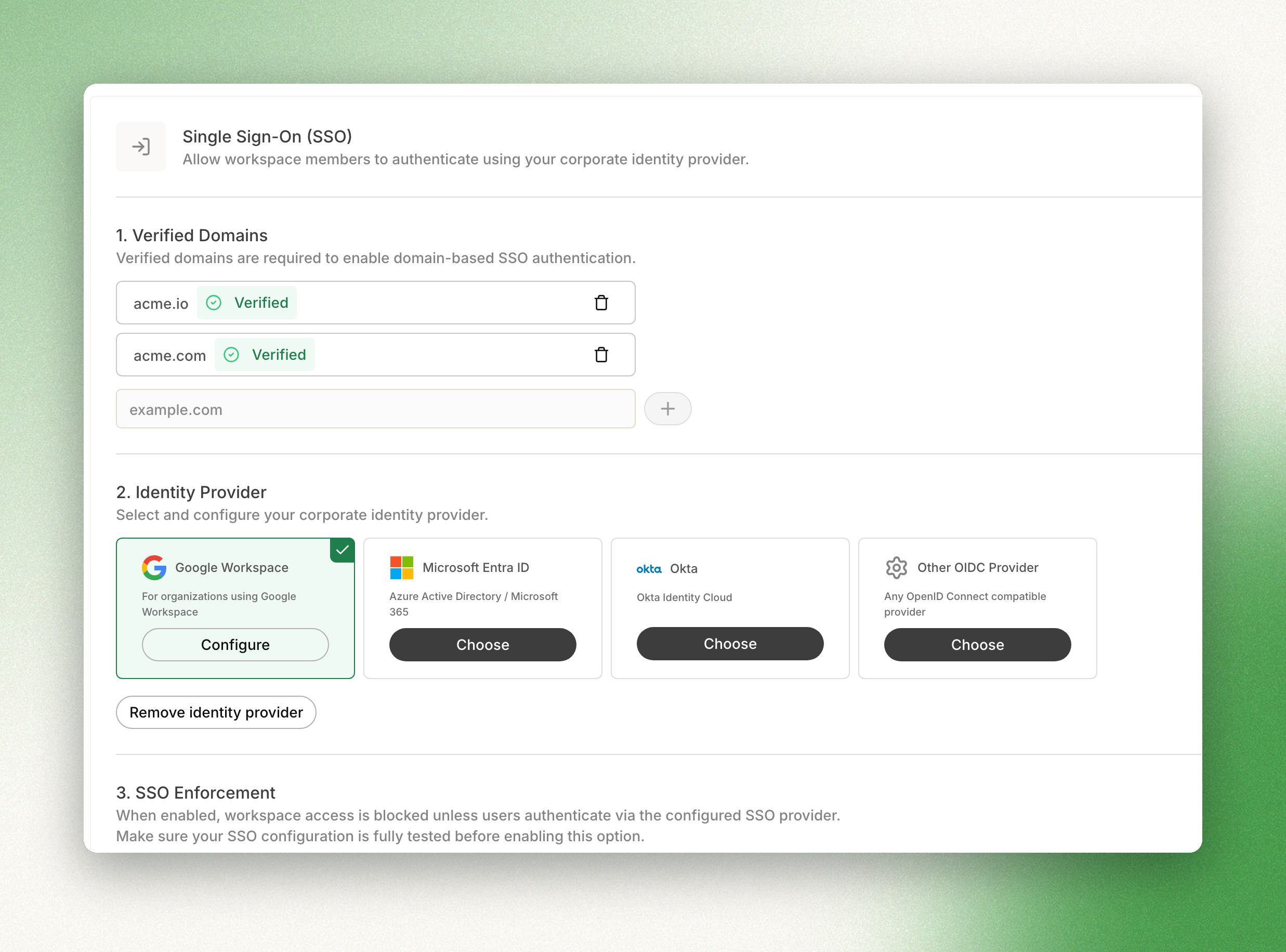
Configuring SSO is done from the workspace Settings page under the SSO section. It takes two steps: verify your domain, then configure your identity provider.
Step 1: verify your domain
Before connecting an Identity Provider, you must prove your organization owns the email domain — acme.com, for instance.
-
In Settings > Users > Security > SSO, click Add Domain and enter your email domain.
-
Dotfile generates a unique verification token.
-
Create a DNS TXT record at
_dotfile-verification.{your-domain}with the valuedotfile-verification={token}. -
Click Verify. Dotfile checks the DNS record and marks the domain as verified.
You can verify up to 10 domains per workspace.
Step 2: configure your identity provider
Once your domain is verified, you can connect your corporate Identity Provider.
-
In Settings > Users > Security > SSO, click Configure Identity Provider.
-
Select your provider type:
| Provider | What you need |
|---|---|
| Google Workspace | Client ID and Client Secret from Google Cloud Console. Note: Issuer URL is pre-configured. |
| Microsoft Entra ID | Tenant ID, Client ID, and Client Secret from Azure Portal Note: When configuring redirect URLs, platform type must be "web" |
| Okta | Okta subdomain, Client ID, and Client Secret from Okta Admin Console Notes:
|
| Other OIDC Provider | Issuer URL, Client ID, and Client Secret |
-
Enter a display name for the provider (e.g., "Acme Okta SSO").
-
Enter the required credentials from your Identity Provider.
-
Assign one or more verified domains to this provider.
-
In your Identity Provider's admin console, add
https://console-api.dotfile.com/auth/oidc/callbackas an authorized redirect URI.
Each workspace supports at most one Identity Provider configuration.
SSO vs. Google social login
Dotfile offers two ways to sign in with a Google account. It is important to understand the difference:
| Enterprise SSO (OIDC) | Google Social Login | |
|---|---|---|
| Purpose | Corporate security and centralized authentication | Convenience for individual users |
| Managed by | Workspace admin and IT team | Individual user |
| Supports enforcement | Yes | No |
| Best for | Organizations requiring centralized access control | Individual users who prefer Google login |
Updated about 2 months ago