
Analytics
Read your workspace's activity on ready-made dashboards, and build your own by asking Autonomy
Introduction
Compliance teams are asked the same questions over and over, by an auditor, by a board, by the business: how many cases did we approve last quarter, how long does a decision take, how many screening alerts turned out to be nothing, who reviewed what. Answering them usually means exporting data and rebuilding a spreadsheet.
Analytics answers them in the product. Three dashboards built by Dotfile are there on day one, and anything they do not cover you can ask Autonomy for in plain language: it builds the chart in the conversation, and you keep it on a dashboard of your own.
How it works
Analytics sits in the sidebar and opens on Overview. Every workspace has two kinds of dashboard:
| Built by | Who sees it | Can it take a new card | |
|---|---|---|---|
| Dotfile dashboard | Dotfile | Everyone with access to Analytics | No, they are read only |
| Your dashboards | You | Everyone in the workspace, or only you | Yes |
- One period for the page: a period picker at the top drives the cards below it, with presets from
Previous 7 daystoPrevious 12 monthsand a calendar for a range of your own, by day or by month. It defaults toPrevious 90 daysand it travels in the URL, so a dashboard you send to a colleague opens on the same period you were reading. - Six kinds of card: a single figure, a line, a bar chart, a donut, a table and a pivot table. Cards that describe the present rather than a period, such as the open backlog, say so and do not move with the picker.
- Numbers you can open: from a card's menu, See the records lists the cases, checks or reviews the figure is counting, and each row links back into the case it came from.
- Exports where you need them: a card's own figures as CSV or XLSX, the records behind a figure as a file, and a whole dashboard as a PDF.
Dotfile's dashboards
Three dashboards ship with every workspace and cannot be edited or deleted:
- Overview answers the executive questions: approval rate, time to decision, automation rate, portfolio risk, cases and checks created, case reviews, cases per progress, open case backlog.
- AML & Screening covers the screening workload: alert resolution times, false positive rate, backlog hits, hit review outcomes, hit types and categories, searches monitored, hits reviewed by user.
- Documents, ID & eKYC covers the identity and document funnel: pass rate by check type, first-attempt pass rate, checks created by type, documents reviewed per user, and the rejection reasons for documents, ID documents, ID verification and eKYC.
Asking Autonomy for a card
Everything beyond those three dashboards is built by asking. There is no chart builder to learn: you describe what you want to see, and Autonomy assembles it from the same data layer the Dotfile dashboards read.
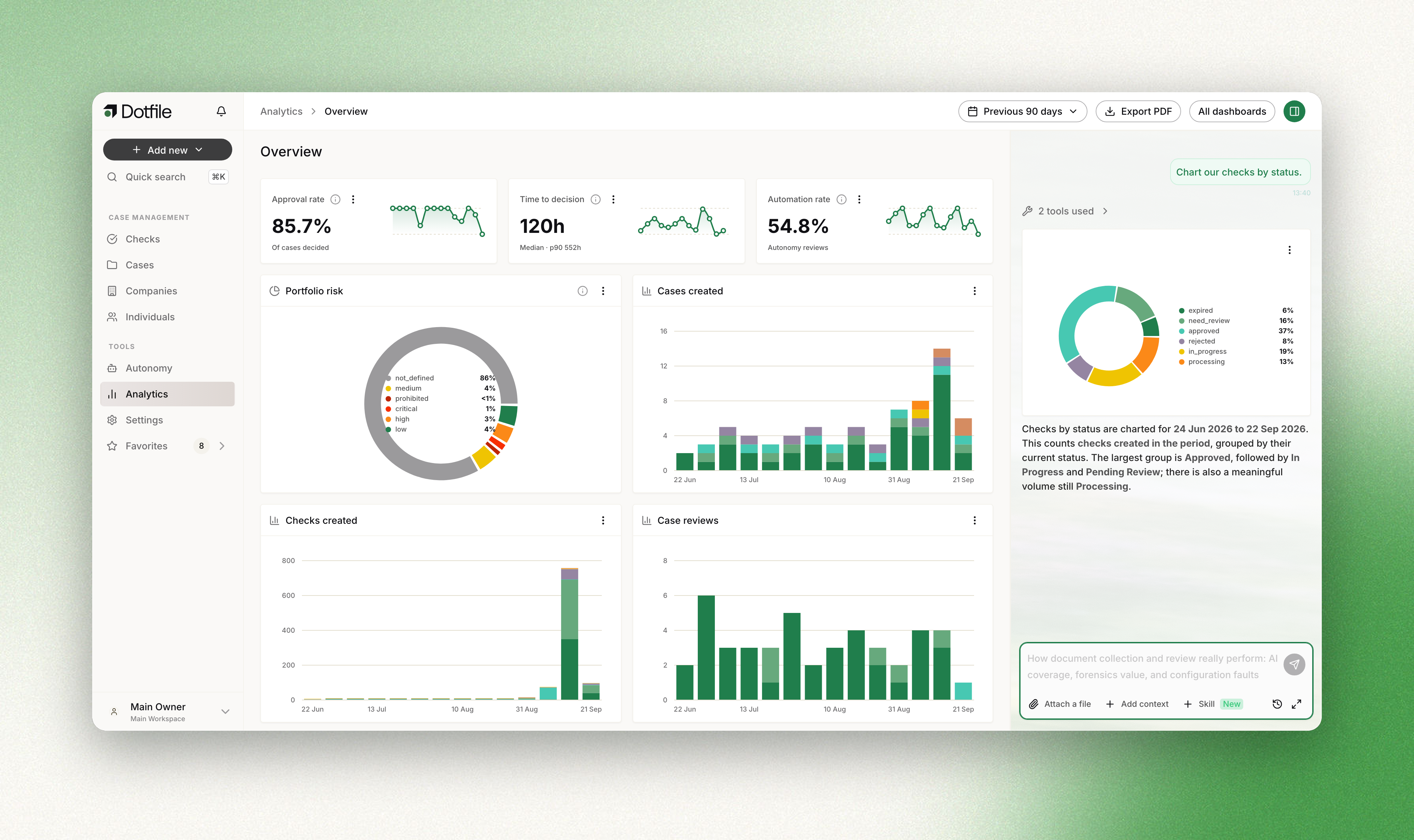
Open Autonomy from the Analytics page and type the question the way you would ask a colleague, for example "show me rejected cases by risk level over the last 6 months". Autonomy draws a real chart inside the conversation and tells you what it counted and over which period.
If the chart is worth keeping, say so: "keep that on my Board pack dashboard". Autonomy asks you to confirm before anything is written, with Approve and Reject on the card. Approve, and the card appears on the dashboard behind the panel straight away.
Worth knowing:
- The destination is one of your dashboards. Dotfile's three are read only. You can name a dashboard that does not exist yet and it is created with the card in the same step.
- It is a sentence, not a button. The chart in the conversation has no add action on it: you ask for it to be kept.
- Nothing is written until you approve. Rejecting leaves no card and no dashboard behind.
- A saved card can be renamed or deleted, not rewritten. To change what it measures, ask for the card you want instead.
- A card arrives full width at the bottom of the dashboard. Arranging it is yours to do.
- A report Autonomy writes can carry the chart itself, rather than the figures retyped into a table.
Your own dashboards
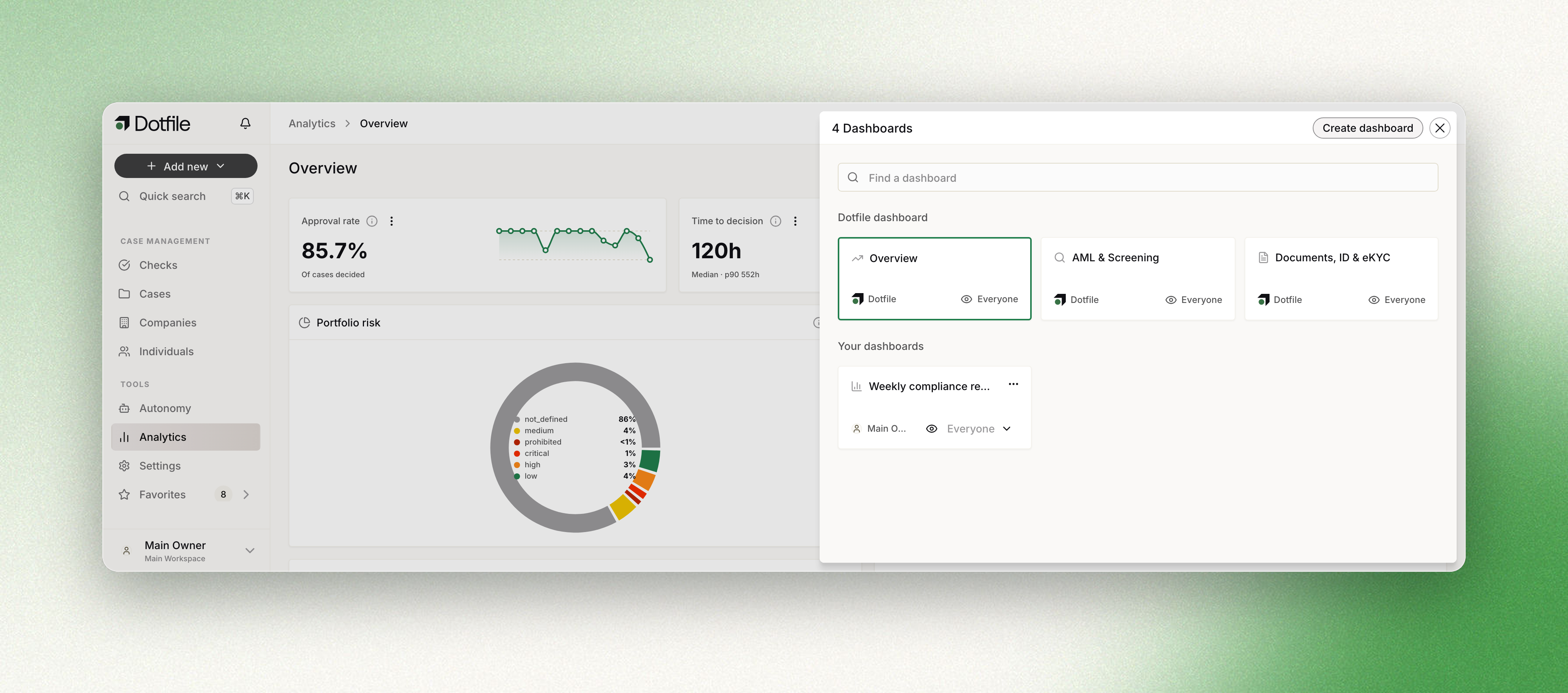
All dashboards at the top right opens the list, with Dotfile's dashboards in one group and yours in another, and a search box when there are many. Create dashboard asks only for a name; a new one starts empty, with Discuss with Autonomy on it to build the first card.
- Arranging: drag a card to move it, and pull its edge to switch it between half width and full width. The layout is saved as you go.
- Who sees it: each dashboard is either visible to Everyone in the workspace or to Just me, set from the list. Only the person who created a dashboard can change that.
- Renaming and deleting: from the dashboard's own menu in the list. A dashboard belongs to the workspace rather than to its author, so anyone with the permission can rename or delete it, and deleting it takes its cards with it. That cannot be undone.
Looking at the records behind a figure
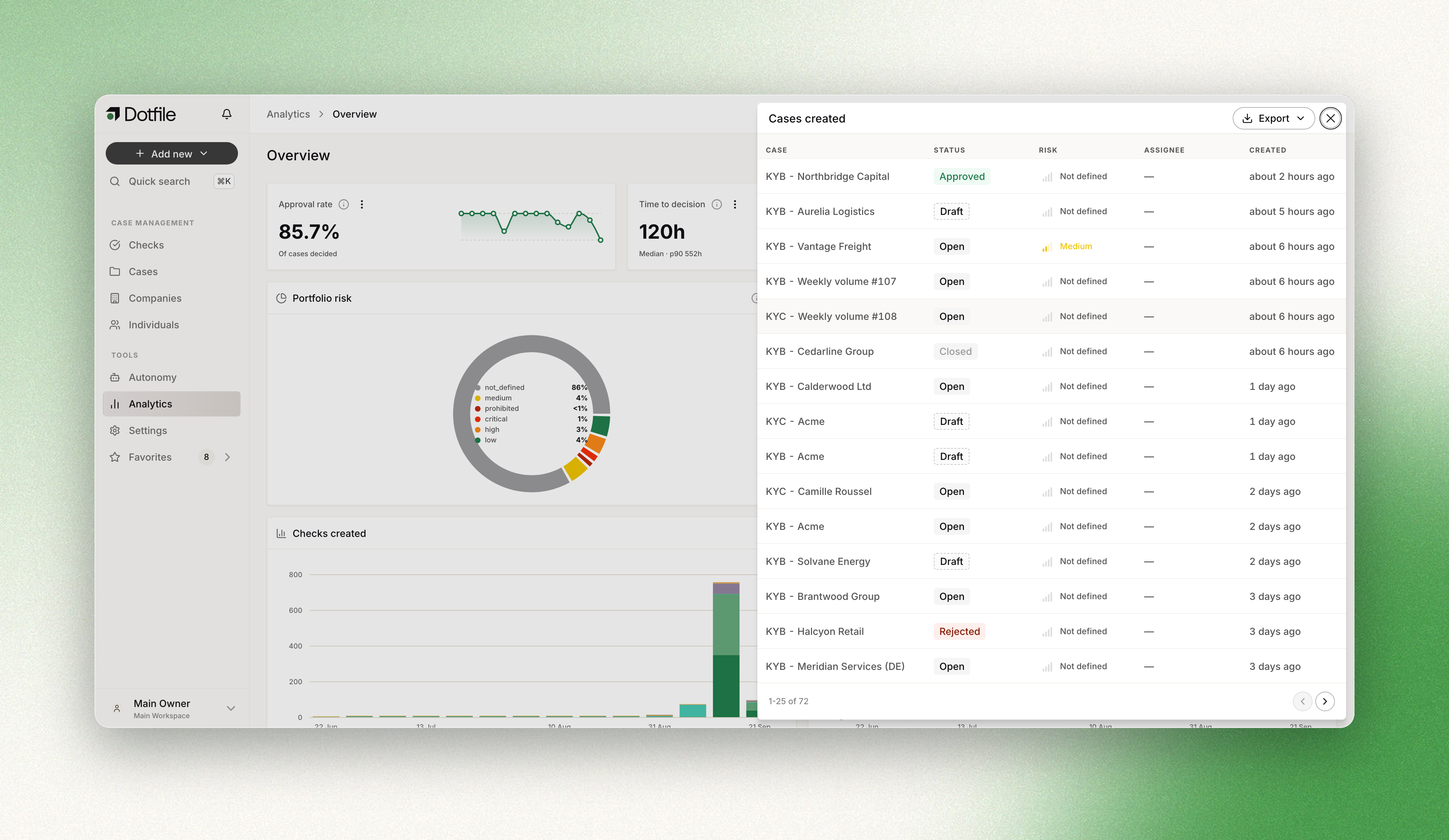
See the records on a card opens a panel listing the underlying records, 25 at a time, with the total at the bottom. When a card reports a rate, it asks which of the two sets you want first, for example the approved reviews or all the reviews. Each row links through to the case or check it belongs to, and the panel is part of the page address, so it survives a reload and can be shared.
From that panel, Export writes the listed records as CSV or XLSX. Exports run in the background and arrive through your notifications with a download link, so a large selection does not hold up the page. An export carries up to 500,000 rows.
Exporting a dashboard
Export PDF at the top of any dashboard, Dotfile's included, produces the dashboard as a PDF over the period currently selected, with the charts rendered as they appear on screen. It is prepared in the background and arrives through your notifications. One export runs at a time per person.
Permissions
Access is governed by the Analytics dashboard permissions on a role: Can access, Can create a custom dashboard, Can rename a custom dashboard and Can delete a custom dashboard. Without access, Analytics does not appear in the sidebar. Asking Autonomy for a chart additionally requires permission to use Autonomy.
Updated about 1 month ago