
eKYC
Verify identity attributes against government registries and credit bureaus, with no document
Introduction
Unlike traditional document-based identity verification, eKYC validates personal information directly against authoritative databases such as government registries and credit bureaus, enabling a faster, lower-friction onboarding experience.
eKYC is ideal when you want to verify identity attributes (name, date of birth, address, national identifiers) without requiring the individual to upload identity documents. It suits markets where regulators recognize database-driven KYC and financial institutions already rely on it.
Dotfile is partnering with GBG for eKYC verification. GBG is a global identity verification provider that validates personal information against government registries, credit bureaus, and other authoritative data sources across 45+ countries.
The verification profile for each country is pre-configured by GBG’s professional services team. Each profile defines which data sources are queried and which codes determine the outcome of the check.
eKYC vs. ID verification
Dotfile offers two approaches to identity verification. Choosing the right one depends on your regulatory requirements and the user experience you want to provide:
| eKYC check | ID verification check | |
|---|---|---|
| Method | Database verification against government and credit bureau records | Document capture and biometric comparison |
| User interaction | None — the check runs internally, with nothing for the end user to do | End-user uploads ID document and takes a selfie |
| Friction | Low — instant, and no document to upload | Higher — the user has to provide documents |
| Speed | Instant (synchronous result) | May take a few seconds to minutes |
| Best for | Markets where database KYC is accepted; pre-screening; low-friction onboarding | Regulatory requirements mandating document-level verification; high-risk onboarding |
Both check types can be used together in a verification template. For example, you might run an eKYC check first for quick validation, and escalate to an ID verification check only when needed.
How it works
The eKYC check is an internal check: it does not require any end-user interaction. When you launch an eKYC check, Dotfile sends the individual’s information to the verification provider, who validates it against national databases in real time. The result is returned instantly, typically in under a second.
Key concepts
-
Database verification: Identity attributes are validated against trusted third-party data sources (government records, credit bureaus) rather than by reviewing an uploaded document.
-
Country-specific profiles: Each country has a dedicated verification profile that determines which data sources are queried and which identifiers are required or optional. These profiles can be adjusted upon request.
-
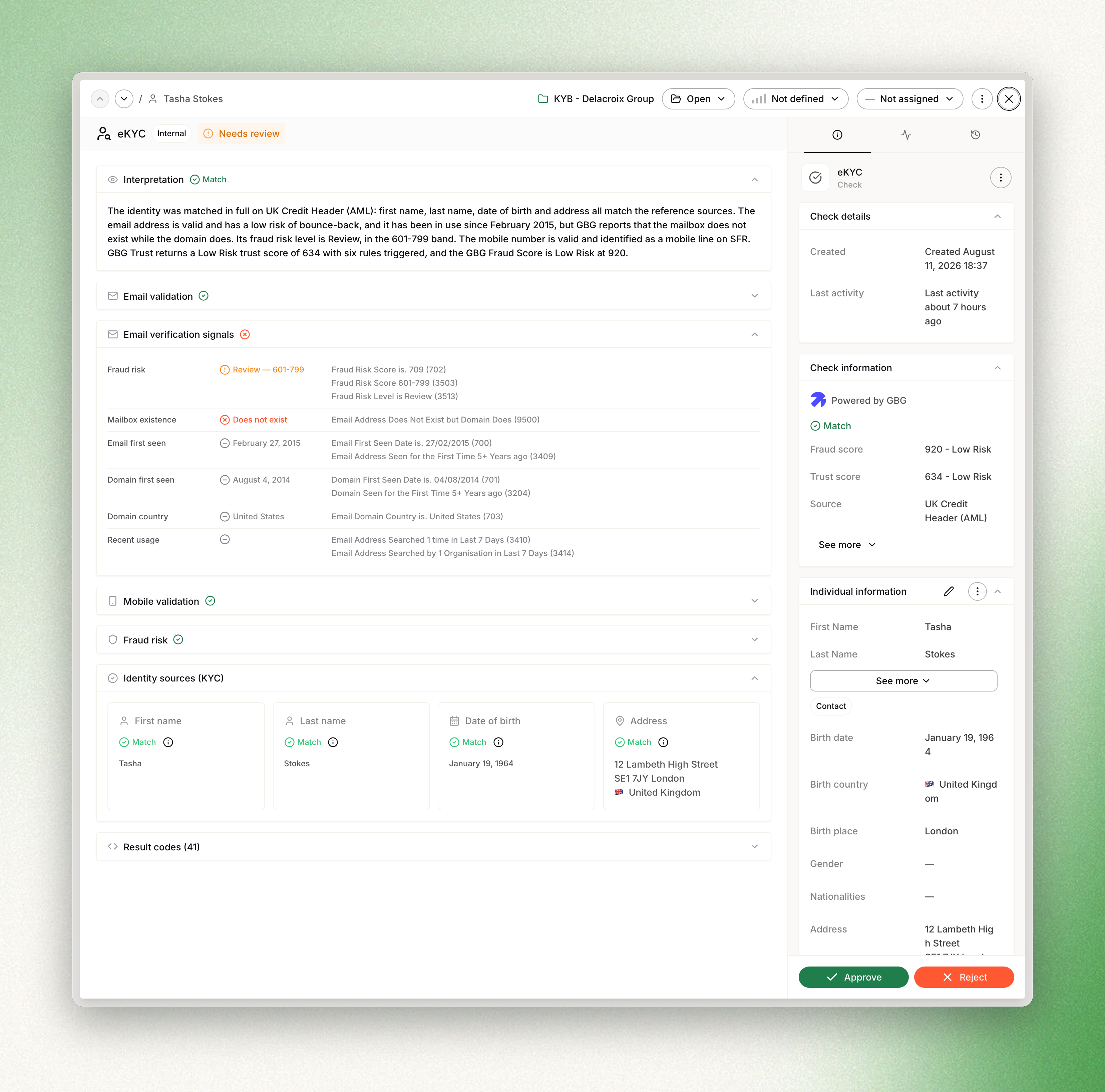
Field-level results: Each piece of information (first name, last name, date of birth, address) is individually verified and returns a match status.
-
Multi-source verification: Dotfile’s default configuration uses 2-source matching whenever available. The provider queries at least two data sources (e.g. credit bureaus, government registries) before validating the identity. When a mismatch occurs, source-level details are displayed so you can understand which database returned the discrepancy. Depending on your regulatory requirements, you can opt for a verification against a single source.
-
Matching: A data source counts as a match when it successfully verifies a combination of identity fields. The standard matching logic is:
-
Name + Address = 1 match
-
Name + Date of Birth = 1 match
-
Name + Address + Date of Birth = stronger match (higher confidence score)
With 2-source matching, Dotfile’s default, the individual’s data must match on at least two independent sources. For example, if Source A matches on name + address and Source B matches on name + date of birth, this counts as a 2-source match and identity is validated.
All countries support partial (fuzzy) matching by default. This means that minor variations in names such as nicknames, abbreviations, or small typos (e.g. “Rob” matching “Robert”) are accepted. This raises pass rates without loosening the match.
Launching an eKYC check
You can launch an eKYC check from any individual profile page by adding a new check and selecting eKYC. Launching it is a single action — there is no form to fill in and nothing to configure.
The system automatically detects the country from the individual’s residence address and selects the appropriate verification profile. If the country is not in your workspace’s allowed countries list, the check cannot be created.
Prerequisites
Before launching an eKYC check, ensure the individual has the following information filled in:
-
Required: First name, Last name, Address, Date of birth
-
Country-specific: National identifier (e.g. SSN for the US, CPF for Brazil)
The more information you provide, the more accurate and reliable the verification result will be. Even if optional fields are missing, the check can still be launched, and the provider returns partial results based on the available data. We can provide you with the full list of required / recommended information by country — just ask [email protected].
Using templates
You can also use a Template to automatically launch an eKYC check on all the individuals in a case that require it (e.g. Beneficial Owner, Legal Representative).
Check results
After launching an eKYC check, the result is determined based on how well the individual’s information matches the data found in national databases. There are three possible outcomes:
| Result | Description |
| Approved | The individual’s identity has been verified successfully. Key attributes match the reference data. The check is automatically approved. |
| Need Review | Some attributes match, but others could not be fully verified or returned warnings. A compliance officer must manually review the results and decide to approve or reject. |
| Rejected | Critical identity attributes do not match. The individual’s identity could not be verified. The check is automatically rejected. |
Field-level verification
Each field submitted for verification is individually assessed and returns one of the following statuses:
| Status | Indicator | Description |
| Match | ✓ | The field value matches the reference data from the database. |
| Mismatch | ✗ | The field value does not match the reference data. This may indicate an error or a potential identity inconsistency. |
| Warning | ⚠ | A partial match or the data requires attention. For example, the year of birth matches but the day could not be verified. |
| No Match | — | No data was found for this field in the reference database. The field could not be verified. |
The eKYC check verifies first name, last name, date of birth and address. Other fields are verified when you provide them — an SSN, for instance. When a mismatch is detected and multiple data sources were queried, a tooltip will indicate which source returned the discrepancy.
Decision logic
The eKYC check result is determined in two steps: first, the verification provider scores the individual’s data against available databases and returns a provider-level decision; then, Dotfile maps that decision to one of three check statuses.
Provider scoring
The provider compares the individual’s data against one or more data sources. Each source that finds a match contributes to a score based on the fields that were verified (name, address, date of birth, national identifier). The total score determines one of four provider-level decisions:
-
Alert: Negative information was found (e.g. deceased record, fraud flag).
-
Refer: The data could not be sufficiently matched against any source.
-
1 Source Pass: The data was verified against one data source.
-
2 Source Pass: The data was verified against two independent data sources (strongest level of verification).
The exact screening criteria vary by country:
USA:
-
2× name & address only = Refer (not sufficient)
-
2× name & date of birth = Pass
-
1× name, address & DOB + 1× name & SSN = Pass
-
1× name & DOB + 1× name & address = Pass
United Kingdom:
-
1× name, address & DOB = 1 Source Pass
-
1× name, address & DOB + 1× name & address = 2 Source Pass
All other countries (standard scoring):
-
1× name, address & DOB = 1 Source Pass
-
1× name, address & DOB + 1× name & address (minimum) = 2 Source Pass
Where only 1-source matching is available: forename, surname, DOB & address = Pass
Dotfile decision mapping
Dotfile maps the provider-level decision to one of three check statuses:
| Provider decision | Dotfile status | Action |
| Alert | Rejected | Automatically rejected, if automatic rejection is on |
| Refer | Need Review | Requires manual review by a compliance officer |
| 1 Source Pass | Need Review | Requires manual review by a compliance officer |
| 2 Source Pass | Approved | Automatically approved, if automatic approval is on |
In short: only a 2 Source Pass approves automatically, and only when automatic approval is on. An Alert rejects automatically, on the same condition. All other outcomes (Refer, 1 Source Pass) require manual review by your compliance team.
Common reasons for a failed check
If a check returns a “Need Review” or “Rejected” result, the most common causes are:
-
Poor input data quality (misspelled name, incorrect address format, missing fields)
-
The individual is not present in the available data sources (e.g. young person, recent immigrant, rural address)
-
Diacritics or character encoding issues (e.g. é vs e, common in French names)
-
Address standardization mismatches (abbreviations, missing postal code)
To improve pass rates, ensure you collect as many fields as possible (especially national identifiers and phone numbers), and enforce proper address formatting in your data collection forms.
Workspace settings
eKYC settings are configured at the workspace level in the Settings section. You can configure:
-
Automatic approval: When enabled, checks that return a PASS decision are automatically approved without manual review.
-
Automatic rejection: When enabled, checks that return a FAIL decision are automatically rejected without manual review.
API
eKYC checks can be created and retrieved via the Dotfile REST API.
Webhook events are also available to notify your systems when an eKYC check is completed or reviewed. You can learn more in our API documentation.
Updated about 2 months ago