
Custom property groups
Arrange custom properties into ordered sections so the right fields sit where your team looks
Introduction
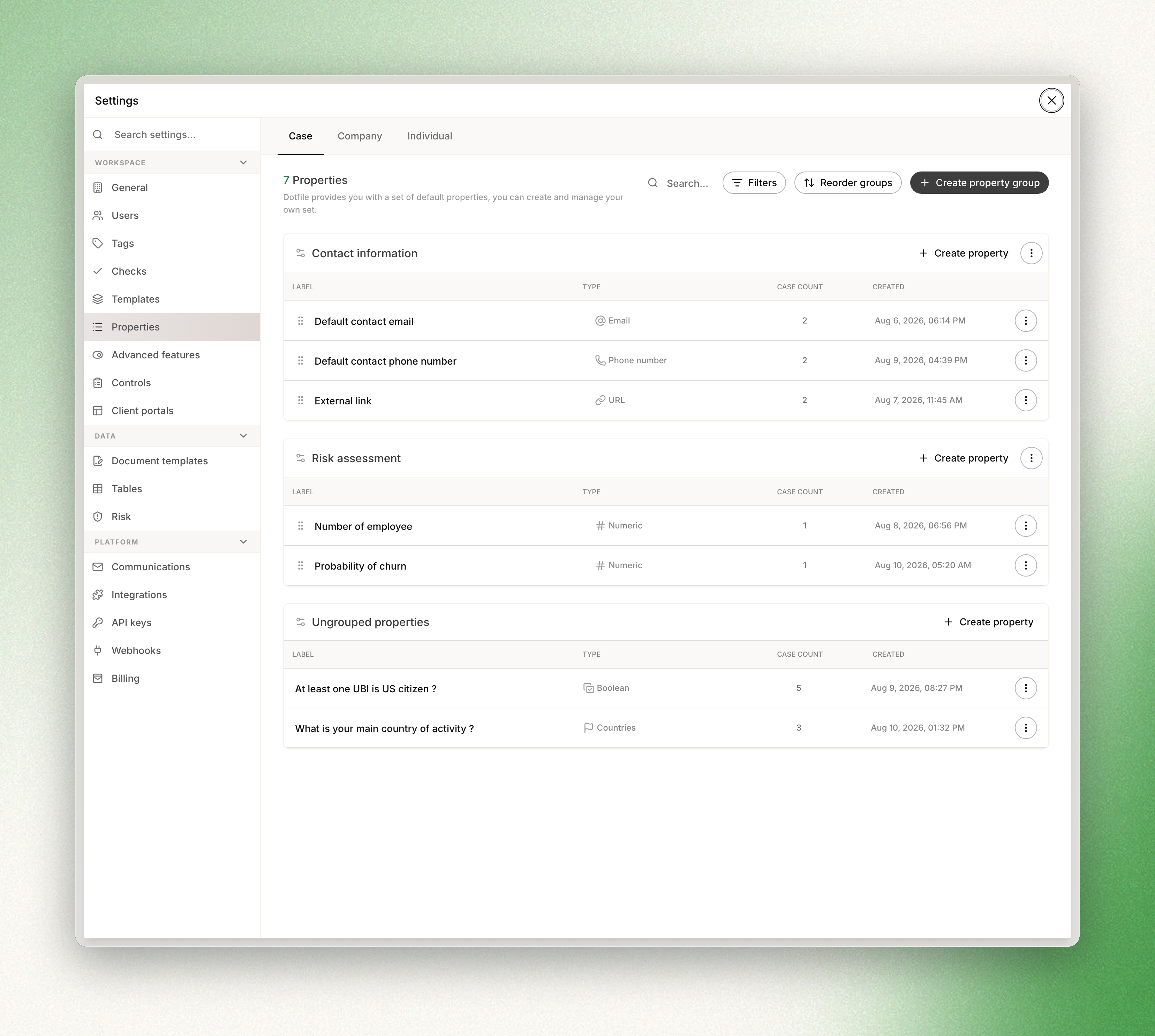
Custom property groups let you arrange your workspace's custom properties into sections with a configurable display order, so the most relevant fields appear where your team needs them.
How it works
- Named groups: name a group after what it holds — Identity information, Financial details, Risk assessment.
- Drag-and-drop reordering: reorder properties within a group by dragging them on the workspace settings page. Groups themselves can also be reordered.
- Entity-scoped: groups are scoped to an entity type (case, company or individual). Each entity type has its own set of groups.
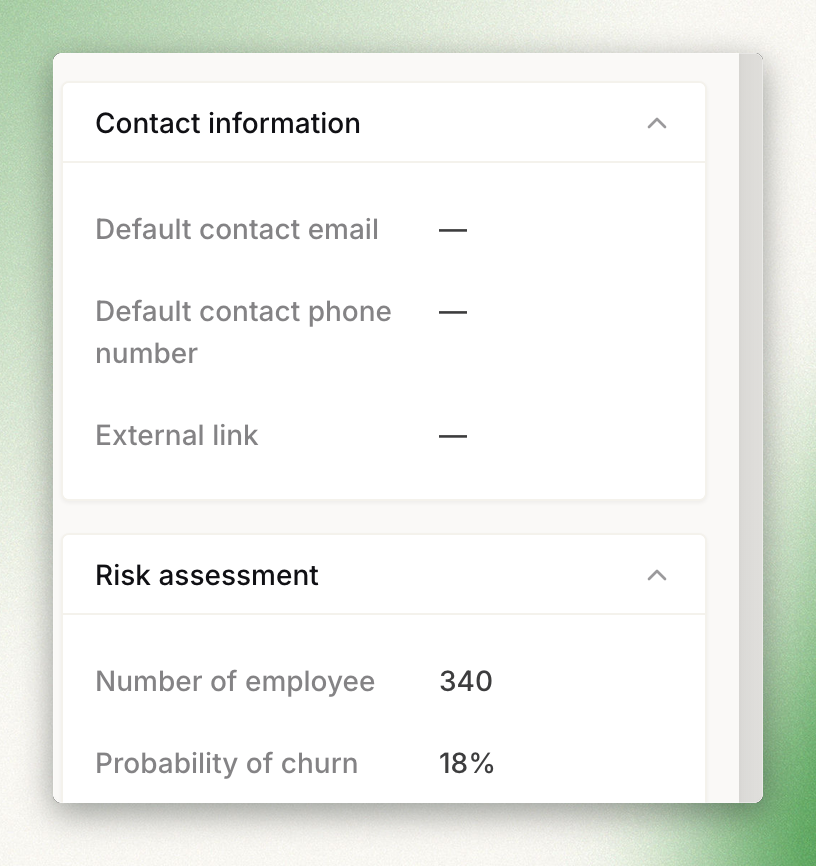
- Collapsible display: in the entity detail view (case, company or individual profile), property groups appear as collapsible sections.
Create a group
From the workspace Settings page, go to Properties. Click Create property group and give it a label. The group is scoped to the entity type currently selected (case, company or individual).
Add properties to a group
When you create a custom property, you can select which group it belongs to. You can also assign an existing property to a group by editing it: a Property group field lets you select the target group.
A property can only belong to one group at a time. Moving a property to a different group removes it from the previous one.
Create properties from the Client Portal builder
You can also create custom properties directly from the Client Portal builder. When you add a field to a Client Portal step, a Create new property action appears at the bottom of the field list. The new property is created in the selected group and added to the current step.
Updated about 1 month ago