
Autonomy
Ask Autonomy for information and let it act on cases, in conversation
Introduction
Most of what you do in Dotfile is a sequence of clicks you already know by heart: open the case, read the checks, work out what is blocking it, act. Autonomy lets you say it instead. Ask about a case, summarize risk across your workspace, create cases and checks, or launch AI Reviews — all from a chat.
Autonomy is a new interaction layer for Dotfile, not a single screen. It starts inside a case to help you understand and decide, and expands into a dedicated workspace where you can reason across many cases at once.
How it works
Autonomy understands your request, decides which actions are needed, and carries them out using the same tools you'd use yourself.
- Conversational: Describe what you want in natural language. Autonomy interprets the intent and figures out the steps, rather than making you click through the product.
- Context-aware: A conversation can be scoped to a single case or to your entire workspace, so answers and actions always operate on the right data.
- It acts, not just answers: Beyond explaining, Autonomy can create cases, add checks, run AI Reviews, assign cases, set risk levels, apply templates, and more.
Where to find Autonomy
There are two ways to use Autonomy, designed for two different moments in your work.
Inside a case
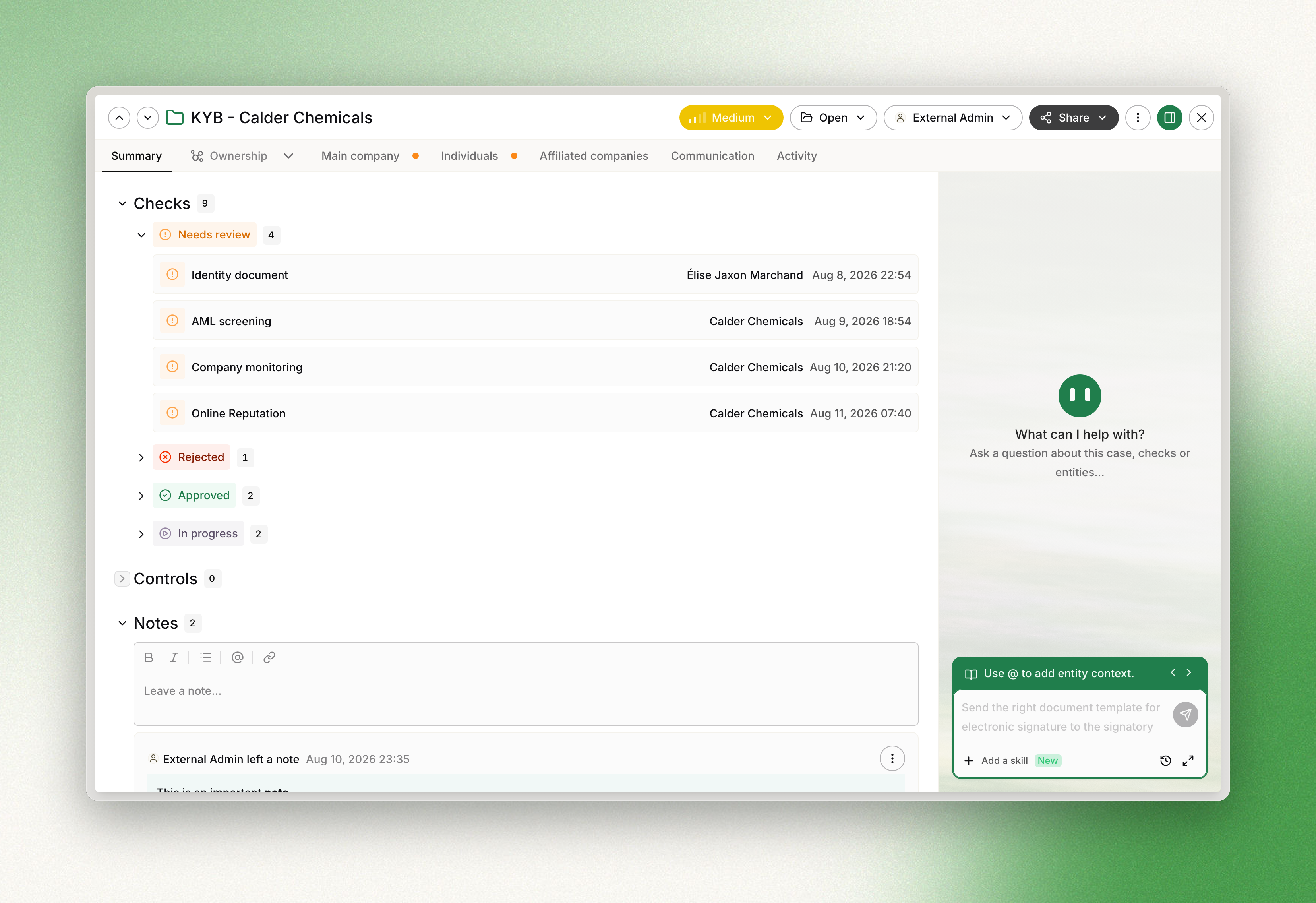
Open the Autonomy tab in the case side panel to chat about the case you're looking at. The conversation is scoped to that case, so you can ask Autonomy to explain the status of its checks, clarify why the case is blocked, summarize its risk and next steps, or launch an AI Review on its checks, without leaving the case.
The dedicated Autonomy section
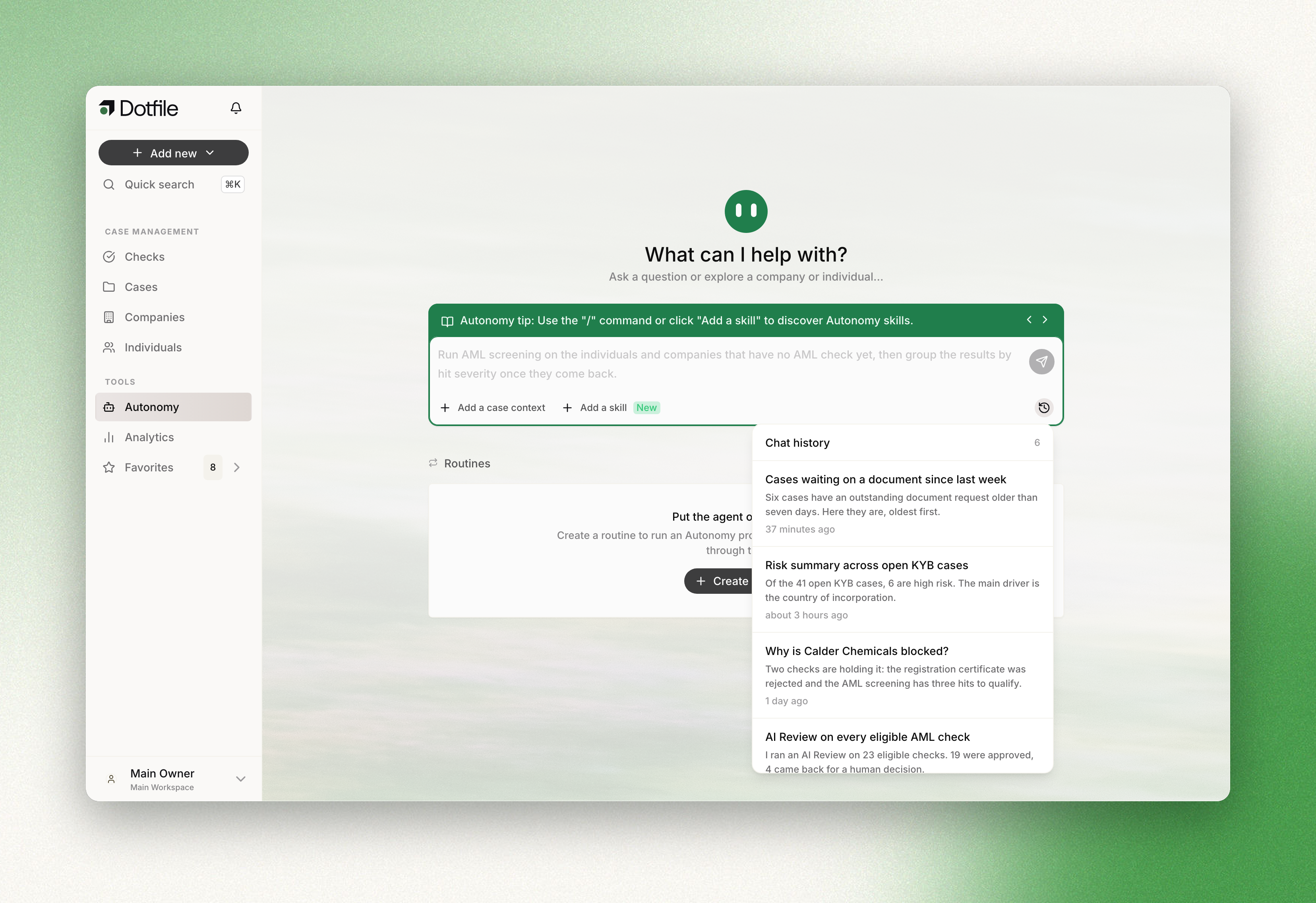
Open Autonomy from the Tools group in the left sidebar to reach the full assistant. Here conversations are workspace-wide: you can reason across multiple cases, get global summaries and insights, run operations at scale, and pick up where you left off thanks to your conversation history. This is a natural place to start your day: ask what needs attention and let Autonomy guide you.
What you can ask Autonomy to do
A few examples of what you can ask:
| Area | What you can ask |
|---|---|
| Understand and summarize | Search and summarize cases, checks, individuals, and companies; get workspace-level stats; explain why a case is blocked or what's missing. |
| Run AI Reviews | Launch an AI Review on a single check, or across many eligible checks at once. |
| Create | Set up a new company or individual case and add the right checks to it. |
| Take action on a case | Assign the case to a teammate, set its risk level, add a note, apply a template, or add tags. |
| Operate at scale | Apply a template, create checks, or start AI Reviews across hundreds of cases in a single bulk operation. |
There are no commands to learn — describe the outcome you want. To get started quickly, the chat also offers one-click suggestions such as Create case, Summarize risk, and Request missing docs.
Running AI Reviews from the chat
One of the most powerful things you can do with Autonomy is trigger Dotfile's AI Review directly from a conversation.
- Single check: Ask Autonomy to review a specific check, and it launches the matching AI agent automatically based on the check type (AML, document, identity, and so on). No need to pick the agent yourself.
- Bulk AI Review: Ask something like "Launch an AI Review on all eligible checks for this case" (or across your workspace). Autonomy finds the checks that are eligible for review, then runs them together as a batch.
The AI Review action available on your case and check tables also opens directly into an Autonomy conversation, so the chat is the single place where AI Reviews are launched and tracked.
How AI Reviews decide
Every AI Review follows your workspace's AI Policies: plain-language rules you control that keep AI decisions aligned with your own compliance standards. You'll find them in Settings → Advanced features → AI Policies, with one policy per reviewable check type.
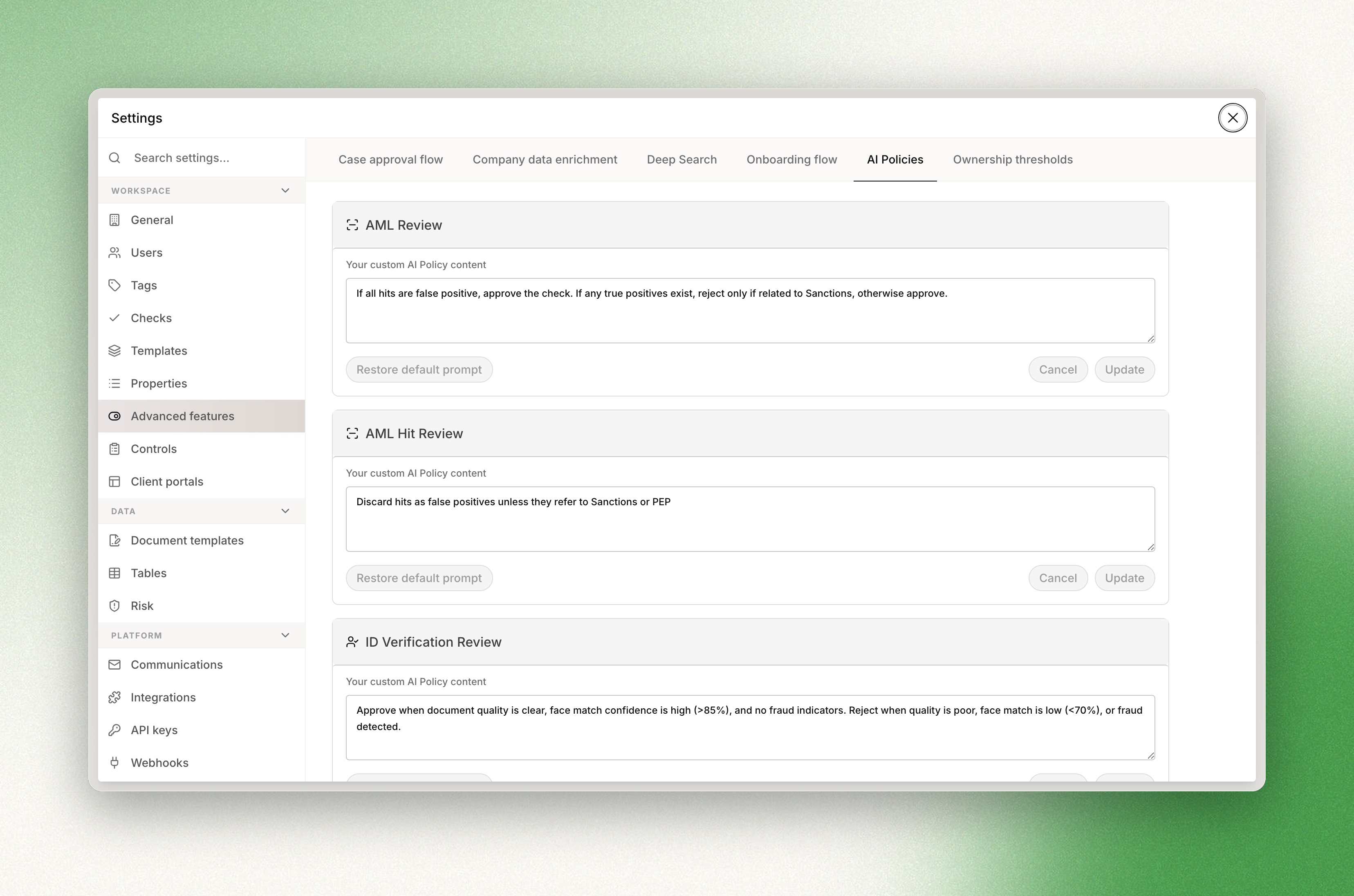
Each policy is written in plain language. For example: "If all hits are false positives, approve the check. If there is a true positive, reject only if it relates to sanctions; otherwise approve." Every workspace starts with sensible defaults, which you can edit to match your risk appetite or revert with Restore default prompt.
When an AI Review runs, the agent applies the matching policy to approve or reject the check and records its reasoning on the check, so every decision is explainable and auditable. Editing policies is reserved for workspace owners and admins; the policies then apply to every AI Review across the workspace.
Working with conversations
Every chat is saved as a conversation you can return to.
- History: Your recent conversations appear in the Autonomy section, each with a title, a preview of the last message, the linked case (if any), and a timestamp. You can reopen or delete them at any time.
- Scope: In a workspace conversation you can attach a specific case as context when it's helpful; inside a case, the conversation stays focused on that case.
- Quick actions and suggestions: Preset prompts and quick replies help you start common tasks in one click and keep a conversation moving.
Availability and permissions
Autonomy is available to all Dotfile workspaces and is currently labeled Beta as we continue to refine the experience. Every workspace member can open Autonomy and use it to explore and understand their data; the actions Autonomy can perform on your behalf are governed by your existing permissions, and any action that changes data requires your explicit approval.
Updated 29 days ago