
Spaces
Give your own customers or partners their own scoped access to run KYC and KYB
Introduction
Spaces is for companies that give their own customers or partners access to Dotfile to run KYC & KYB, an indirect (B2B2B / B2B2C) business model. Think BaaS providers whose fintechs onboard their own users, platforms serving a network of accounting firms, or any business whose clients verify their own suppliers or customers.
Until now, everyone you invited to your workspace could see every case in it. Spaces lets you split a workspace into smaller groups: you assign cases to a space, and members invited to that space only see the cases that belong to it.
How it works
Visibility depends on whether a member is assigned to a space:
- Space members see only the cases assigned to their space. They can't see:
- cases assigned to another space
- cases not assigned to any space
- anything else in the workspace, or its settings
- Workspace members (not assigned to any space) and admins keep full visibility across all cases and can filter the case list by space.
Setting up a space
Go to Settings → Users → Spaces and create a space by giving it a name. Then invite members to it: when you send an invite, you assign it to the space, and the member is automatically added to that space once they accept.
A space member cannot access the workspace settings. Workspace settings stay shared, so there's nothing new to configure per space.
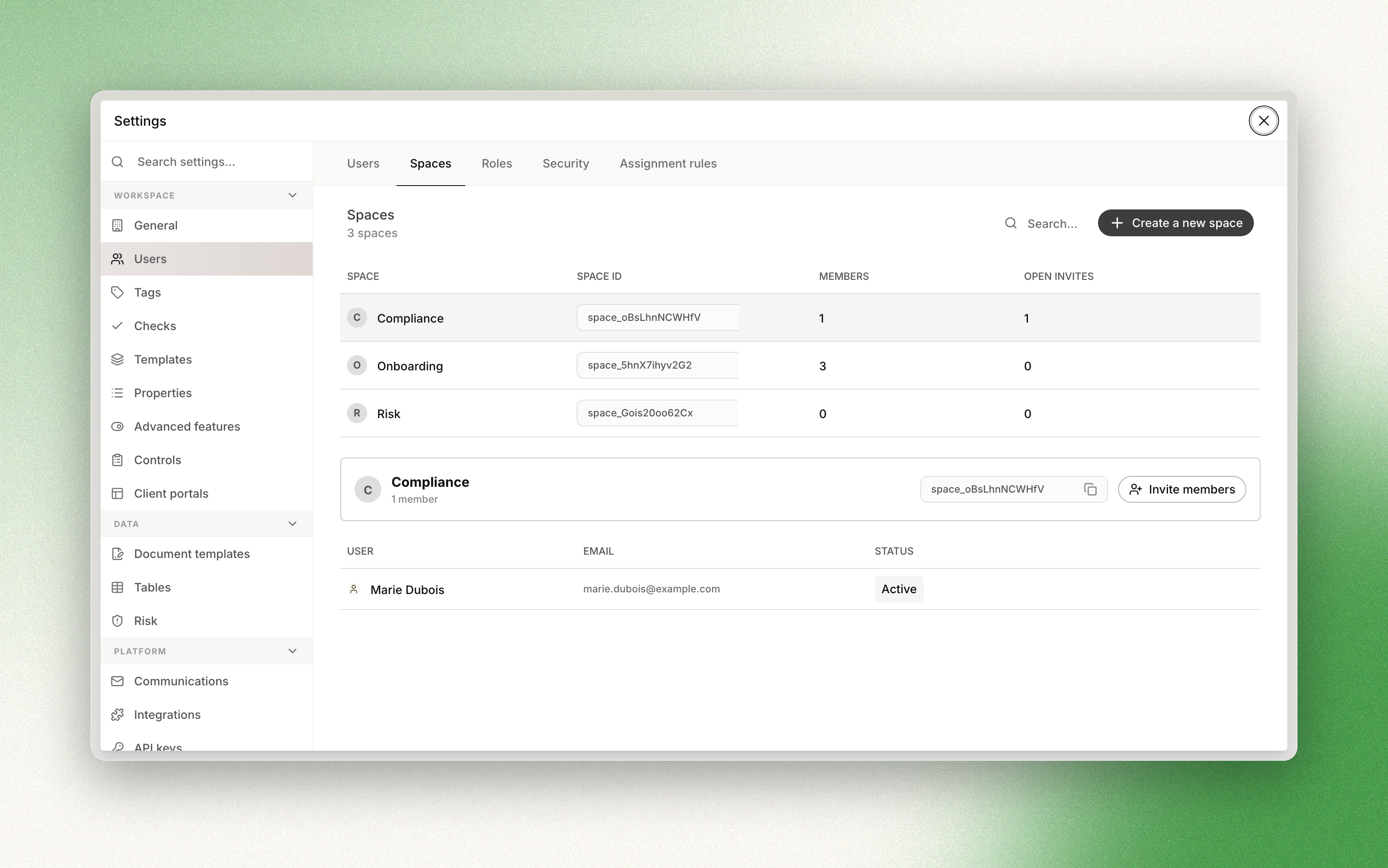
Assigning cases and reviewing them
You assign a case to a space when you create it, in two ways:
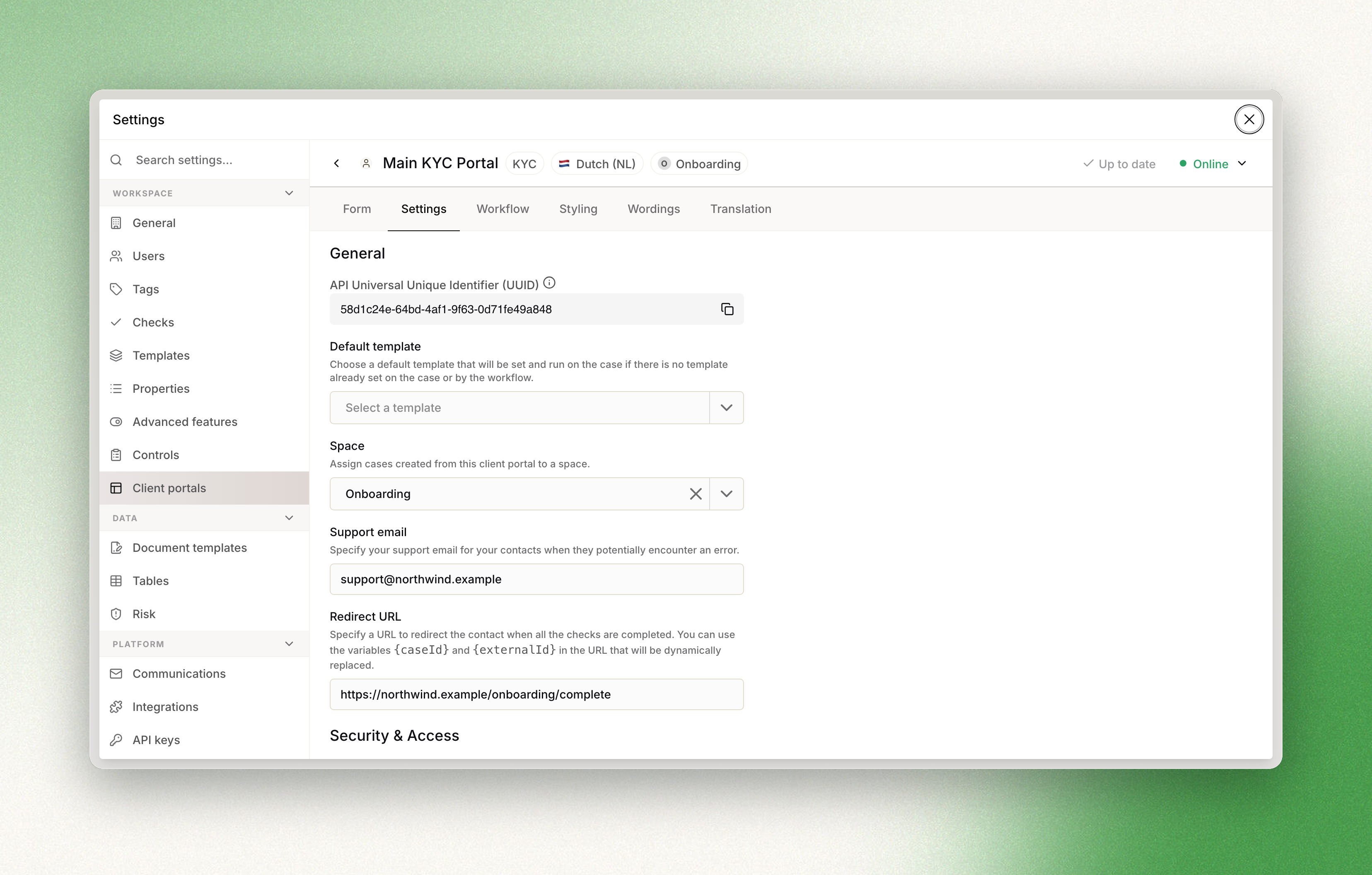
- Through a client portal: link a portal to a space in its settings (Settings → Client portals → your portal → Settings → Space), and every case created from that portal is automatically assigned to that space.
- Through the API: assign the case to a space when you create it. You can read more in our API documentation.
Updated about 2 months ago