
Secure share links
Stronger link security for the portal links you share, with direct access or email verification
Introduction
Every link you share to a Client Portal is unique to one business contact and one portal. Each portal then lets you choose how that link opens, with its Shared link access setting: Direct access, for a link validity you set, or Email verification, where the contact confirms their email address with a one-time login link at each sign-in.
This applies to every portal link you share: Share case link, the email sent with a portal link, the API, and communications sent from Autonomy.
How it works
| Shared link access | What the contact does | When it suits you |
|---|---|---|
| Direct access (default) | Opens the link and lands in the portal, until the link validity is reached. Once the link has expired, they request a new one by email in one click. | Most onboardings, where speed matters most. |
| Email verification | Opens the link, then receives a login link by email. Only that login link signs them in. | Sensitive onboardings, or when you want proof that the person in the portal controls the contact's email address. |
- One contact, one portal: a link opens the portal it was created for, for the business contact it was created for.
- Email on file: new links and login links always go to the email address stored on the business contact. The contact cannot enter a different address.
- Single-use login links: with email verification, a login link works once and expires 15 minutes after it was sent.
- Nothing sent without a click: a login link is only sent when the contact asks for it, so email security scanners and link previews do not trigger anything.
What the contact sees
Direct access
- The contact opens the link and goes straight to the portal, until the link validity set on the portal is reached.
- After that, the page says "Link has expired" and "The link you are trying to access has expired. Request a new one and we will email it to you."
- They click Request a new link. The page shows "Check your inbox" and "We sent a new link to {email}. Open it to continue your onboarding." Send another link becomes available after 60 seconds.
Email verification
- The contact opens the link. The page shows "Receive your login link" and "To protect your information, we will send a login link to {email}.", with the address partly masked.
- They click Send me a login link. The page shows "Check your inbox" and "We sent a login link to {email}. It only works once and expires 15 minutes after it was sent." If nothing arrives, Resend the link becomes available after 60 seconds.
- In the email, they click Sign in. The page shows "Access your onboarding", and Open my onboarding signs them in on that device.
If the contact opens a login link that can no longer sign them in, a dedicated page explains why:
| The page says | Why |
|---|---|
| "This link has already been used" | Each login link works only once. |
| "This login link has expired" | Login links work for 15 minutes after they are sent. |
| "This login link is no longer valid" | A newer login link was sent, or the contact's email address changed. |
From that page, the contact clicks Get a new login link to receive a fresh one at the same address, without going back to the link you shared. The page also reads "You can also reopen the link you first received." If the portal has since been switched to Direct access, the page says "This portal no longer needs a login link. Open the link you first received to sign in."
If the address shown is not theirs, the page tells them: "Not {email}? Ask the person who sent you this link for a new one."
Configuration
- Go to Settings → Client portals and open the portal.
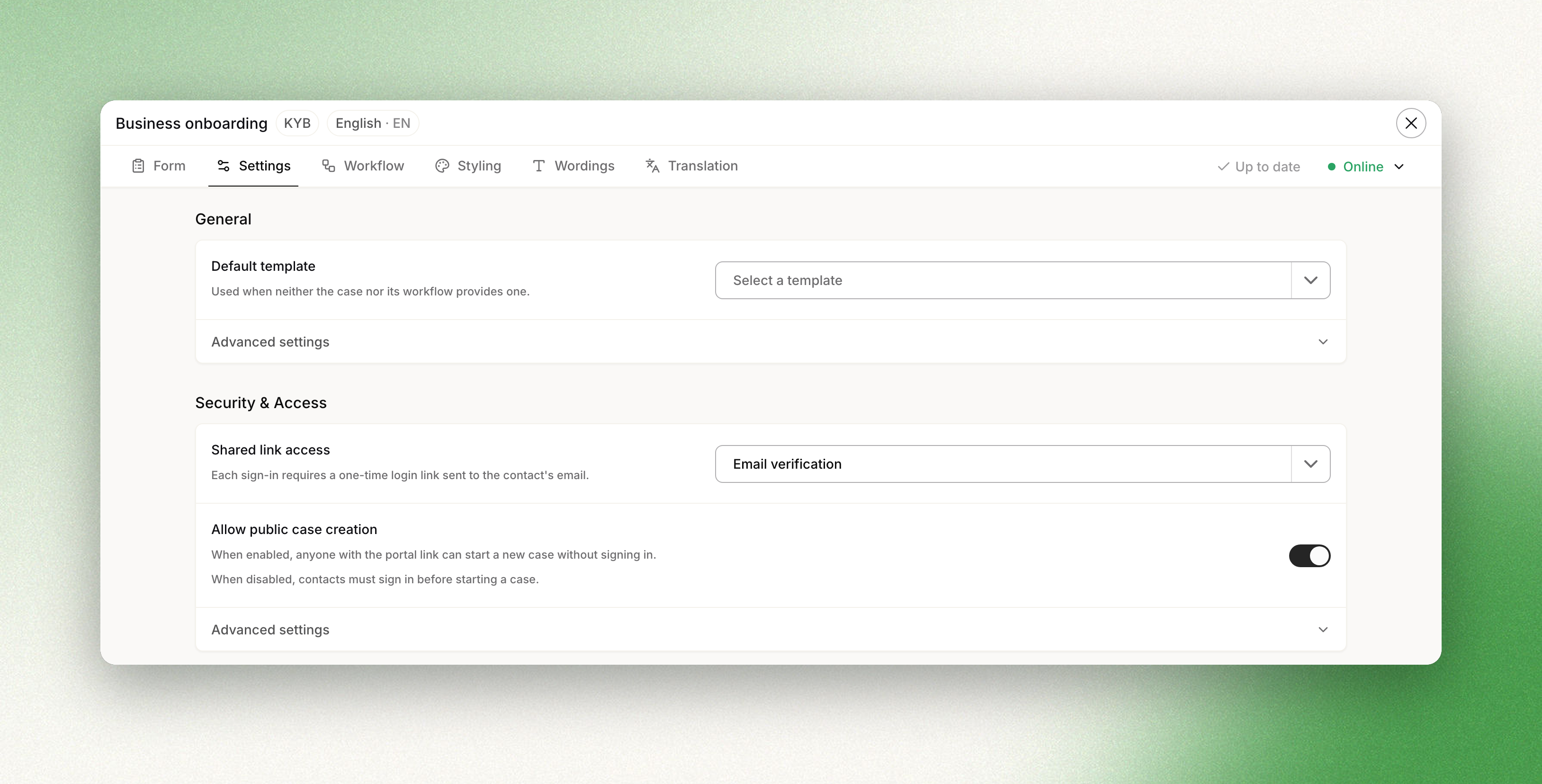
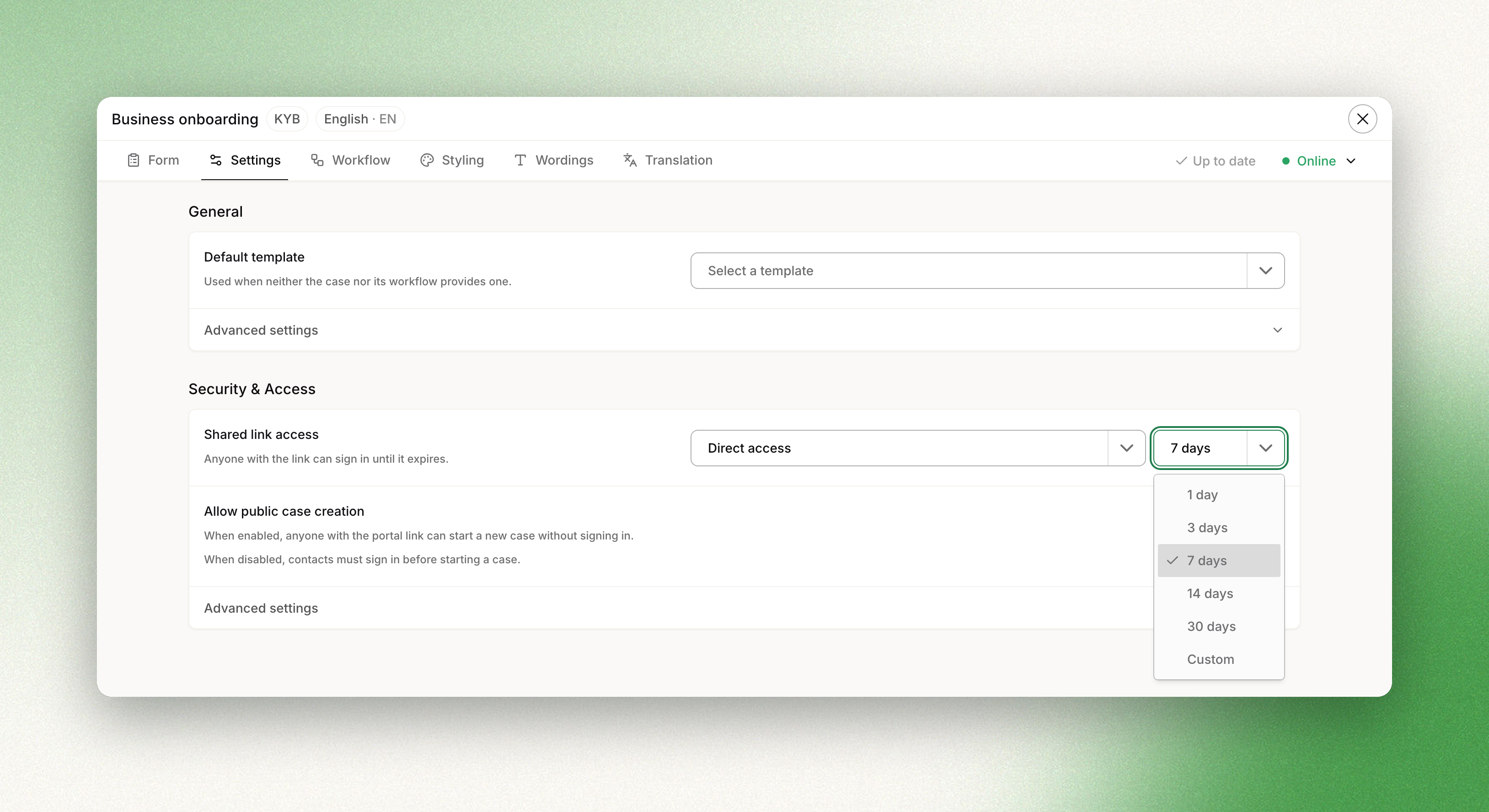
- Open the Settings tab and find the Security & Access section.
- In Shared link access, pick one of the two options:
- Direct access: "Anyone with the link can sign in until it expires." The select next to it sets the link validity: 1 day, 3 days, 7 days (the default), 14 days or 30 days. Pick Custom to enter a duration in days, hours or minutes.
- Email verification: "Each sign-in requires a one-time login link sent to the contact's email." The link validity select is hidden, because every visit is confirmed by a login link instead.
- Click Publish changes. The setting applies once the portal is published.
Switch back to Direct access and publish again to return to direct links, and your previous link validity is restored.
Email verification availabilityEmail verification is enabled per workspace. If Shared link access only offers Direct access, contact your Dotfile account manager.
Adding parameters to a link from the APIPortal links returned by the API contain a
#. If you append query parameters to such a link, add them before the#. A URL library does this for you. See Query parameters.
Updated about 1 hour ago