
Dotfile MCP
Use Dotfile from Claude, ChatGPT, Cursor, Claude Code and other AI tools, with your own permissions
Introduction
The Dotfile MCP connector brings Dotfile into the AI tool you already work in: Claude, ChatGPT, Cursor, Claude Code, or any other AI tool that supports remote MCP servers. Once connected, you can ask your AI tool about your cases, checks and portfolio in plain language, and have it act on them for you, without switching to the console.
The AI tool acts as you. It sees what you can see in Dotfile and can do what you can do, nothing more.
How it works
MCP (Model Context Protocol) is the open standard AI tools use to connect to other software. You add Dotfile to your AI tool once, sign in with your Dotfile account, and the AI tool can then call Dotfile on your behalf whenever a question needs it.
- It acts as you. Every call runs with your user, your role and your custom role permissions. If you cannot approve a case in the console, your AI tool cannot approve it either.
- Your security rules apply on every call. Membership, MFA, SSO and IP restrictions are checked again for the workspace each call targets, not just when you connect.
- One connection, all your workspaces. The connection covers every workspace your account can access. When you work across several, name the workspace in your request, or let the AI tool ask you.
- No key to manage. You sign in through your browser. There is no API key, token or client secret to create, copy or rotate.
- You can revoke it at any time. Revoking a connection cuts off the AI tool on its very next request.
Connecting your AI tool
Find the server URL
The setting lives in your personal account settings, not in the workspace Settings page.
- Click your name (or your avatar, when the sidebar is collapsed) at the bottom of the left sidebar to open the user menu.
- Choose Account Settings. The My Account window opens.
- Open the Connections tab.
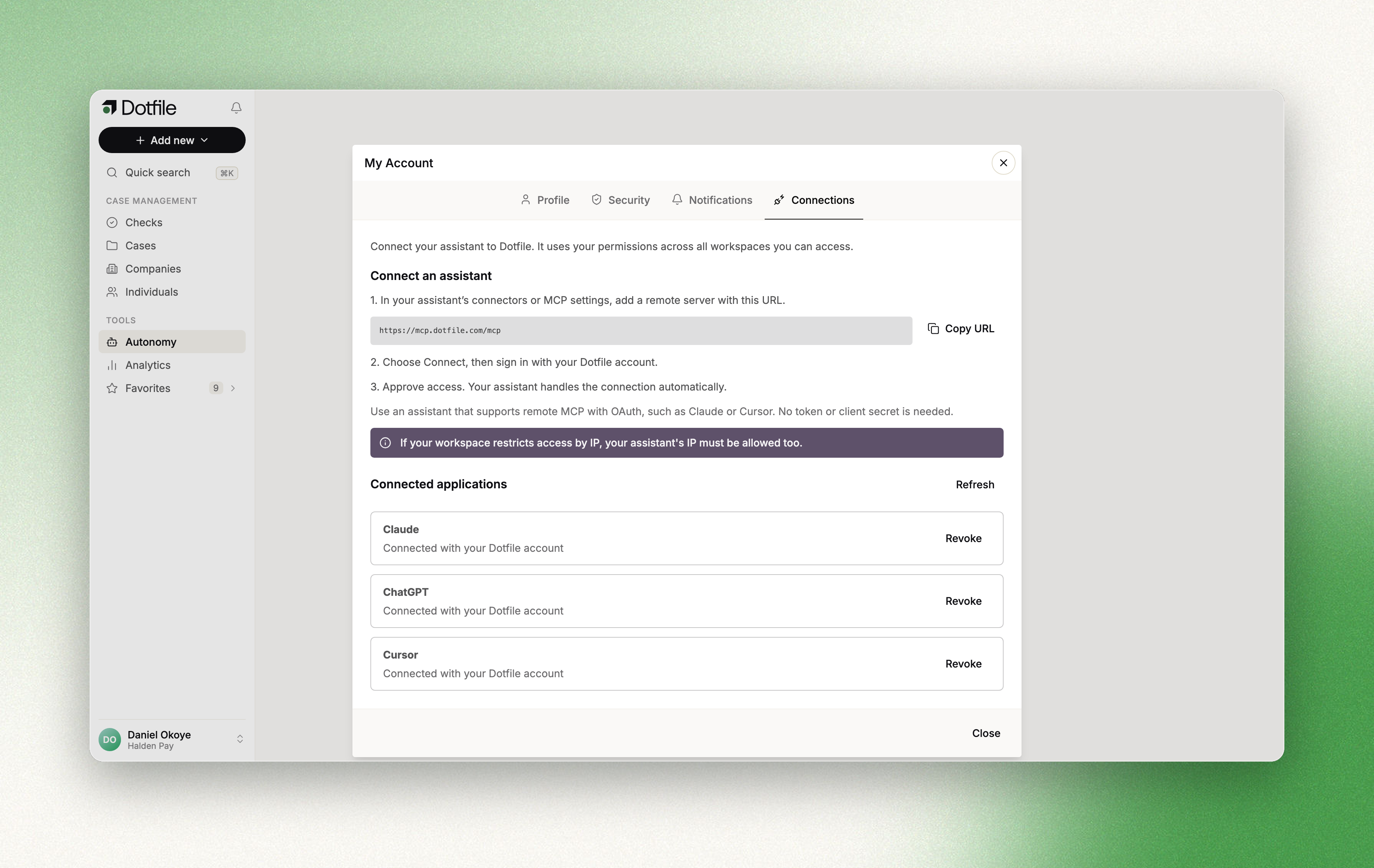
Under Connect an assistant, click Copy URL. The server URL is:
https://mcp.dotfile.com/mcpUse this exact URL. The address docs.dotfile.com/mcp is a different server, which only searches our API documentation.
The tab sums up the setup in three steps: add a remote server with this URL in your assistant's connectors or MCP settings, choose Connect and sign in with your Dotfile account, then approve access. The sections below give the details for the most common assistants.
Claude
In Claude (on the web or in the desktop app), open Settings, then Connectors, and add a custom connector. Name it Dotfile, paste the server URL, and confirm. Then click Connect on the new connector to sign in.
On Team and Enterprise plans, an organisation owner may need to add the connector before members can connect to it.
ChatGPT
In ChatGPT, add Dotfile as a custom connector: paste the server URL and choose OAuth as the authentication method. Custom connectors are available depending on your ChatGPT plan and on your workspace admin settings; if you do not see the option, ask your ChatGPT admin.
Claude Code
Run this command in your terminal:
claude mcp add --transport http dotfile https://mcp.dotfile.com/mcpThen start Claude Code, type /mcp, select dotfile and choose to authenticate. Your browser opens to sign in.
Cursor
Add the server to your Cursor MCP configuration, either from Cursor's MCP settings or in ~/.cursor/mcp.json:
{
  "mcpServers": {
    "dotfile": {
      "url": "https://mcp.dotfile.com/mcp"
    }
  }
}
Cursor then prompts you to sign in.
Other AI tools
Any AI tool that supports remote MCP servers over Streamable HTTP with OAuth sign-in can connect. Add a remote server with the URL above. No token or header is needed.
Sign in and approve
Whichever AI tool you use, connecting opens your browser:
- If you are not already signed in to Dotfile in that browser, sign in as usual, with MFA or SSO if your workspace requires them.
- On the Connect to Dotfile page, click Continue.
- Review the access your AI tool requests and approve it. The connection covers all the workspaces your account can access.
Back in your AI tool, the connection is ready. In Dotfile, the AI tool now appears under Connected applications in the Connections tab (click Refresh if the list was already open).
What you can do
Through the connector, your AI tool can use the same actions as Autonomy, within your permissions.
- Cases and checks. Find cases with the same filters as the case list, read a case's timeline, checks, controls, notes and emails, then act on it: add a note, assign it, tag it, set the risk level, apply a template, complete a control, approve, reject, close or reopen it.
- Analytics questions. Ask for a count, a trend or a breakdown across your portfolio and get the numbers back. You can also save a chart to one of your Analytics dashboards in Dotfile.
- AI review and AML triage. Start an AI review on checks waiting for review (AML, document, ID document and identity verification checks), one at a time or across a whole selection, and read the decisions and reasoning once they are done.
- Onboarding from a company name. Search the company registries, create a KYB case from the company you pick, apply a template, launch checks, and email the business contact a link to your Client Portal.
- Company data and documents. Refresh a company's registry data and see what changed since the last purchase, list the official documents available, order them, and read their content once delivered.
- Bulk actions. Run one of these actions across many cases, checks, companies or individuals at once, as a background job you can follow and cancel.
- Reading your configuration. Read your templates, controls, custom properties, Client Portals, Risk engine, AML screening profiles and workspace settings, so the AI tool can explain how your workspace is set up. Configuration changes stay in the console.
Some actions depend on your role: for example, reading lookup tables and custom roles is reserved to workspace admins and owners, as in the console.
Example prompts
- How many KYB cases are waiting for review in our main workspace, broken down by assignee?
- Run an AI review on every AML check that needs review, then summarise the decisions and list the ones it rejected.
- Open a KYB case for the company Acme Logistics SAS in France, apply our standard KYB template and send the business contact the Client Portal link.
- Summarise case KYB - Acme Logistics: what is still missing, which checks failed, and what happened last week.
- What was our identity verification approval rate per month over the last six months?
- Refresh the registry data for this company and tell me what changed since our last purchase.
Good practice
- Keep confirmations on. Dotfile tells your AI tool which actions change data, and which delete it, so the AI tool can ask you before running them. Most assistants ask by default, and some let you turn this off per action. Keep it on for anything that approves, rejects, deletes or emails someone.
- Review what was done. Like any AI tool, it can misread a request. Check the result in Dotfile after an important change, especially a bulk action.
- Mind billed actions. Refreshing company data, ordering documents and launching checks are billed exactly as they are in the console. Refreshing the same company twice pays twice.
- Name the workspace. If your account has access to several workspaces, say which one you mean.
Limits
- IP allowlists. If your workspace restricts access by IP, calls from your AI tool must come from an allowed IP too. AI tools that run in the cloud, such as Claude or ChatGPT on the web, call Dotfile from their provider's servers, so those calls may be blocked. An assistant running on your own machine, such as Claude Code or Cursor, calls from your network.
- Space-restricted members. If your access to a workspace is limited to a space, the connector is not available in that workspace.
- Workspace scope. A connection covers every workspace your account can access. It cannot be limited to a single workspace.
- No file upload. You cannot send files from your AI tool to Dotfile through the connector. Upload documents in the console or through the API.
Revoking access
Open Account Settings, then the Connections tab. Under Connected applications, click Revoke next to the AI tool, then Revoke access to confirm. The AI tool loses access to all your workspaces on its next request. You can connect again from your AI tool at any time.
Updated 1 day ago